Laptop Not Charging? Check the Charger, Port and Battery in the Right Order
A practical checklist for a laptop that will not charge, from the power adapter and charging port to battery health and professional diagnosis.
A laptop that will not charge does not automatically need a new battery. The charger, cable, charging connector, battery and internal power circuit are all part of the same path. Checking them in order prevents unnecessary parts purchases.
Start with the safe external checks
- Check that the wall socket works with another device. If you use an extension board, test a direct connection too.
- Look for bends, exposed wires, damaged plugs or heat marks on the charger. Do not keep using a damaged adapter.
- If the laptop uses USB-C charging, confirm you are using a port that supports charging and a charger with adequate power for that laptop. A phone charger may not be enough.
- Inspect the charging port with the laptop switched off. Dust can interfere with a connection, but do not push metal objects into the port.
- Restart once and look for the battery or charging indicator in the operating system.
If you can safely borrow a known-compatible charger, testing it is more useful than buying a replacement at random. Match the manufacturer's voltage, connector and power requirements; avoid adapters with uncertain specifications.
What the symptoms may suggest
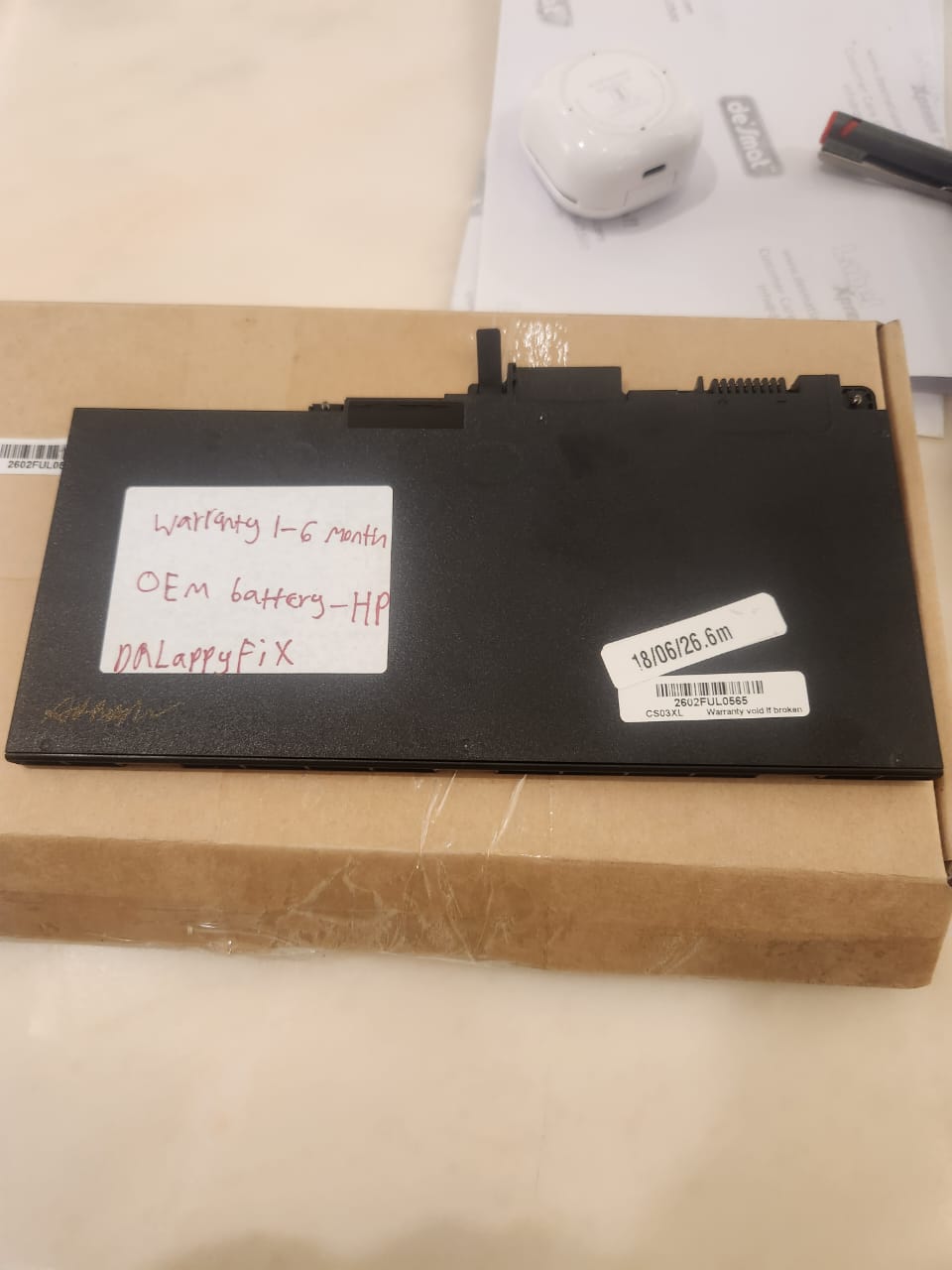
If the laptop runs from the charger but shuts down as soon as it is unplugged, the battery or its connection needs testing. If the charging light flickers when the cable moves, the connector, cable or port may be worn. If there is no sign of power with a compatible charger, the fault may be deeper than the battery.
These patterns are clues, not a remote diagnosis. Software battery reports can help show age and capacity, but they cannot rule out every electrical fault.
When to stop and book an inspection
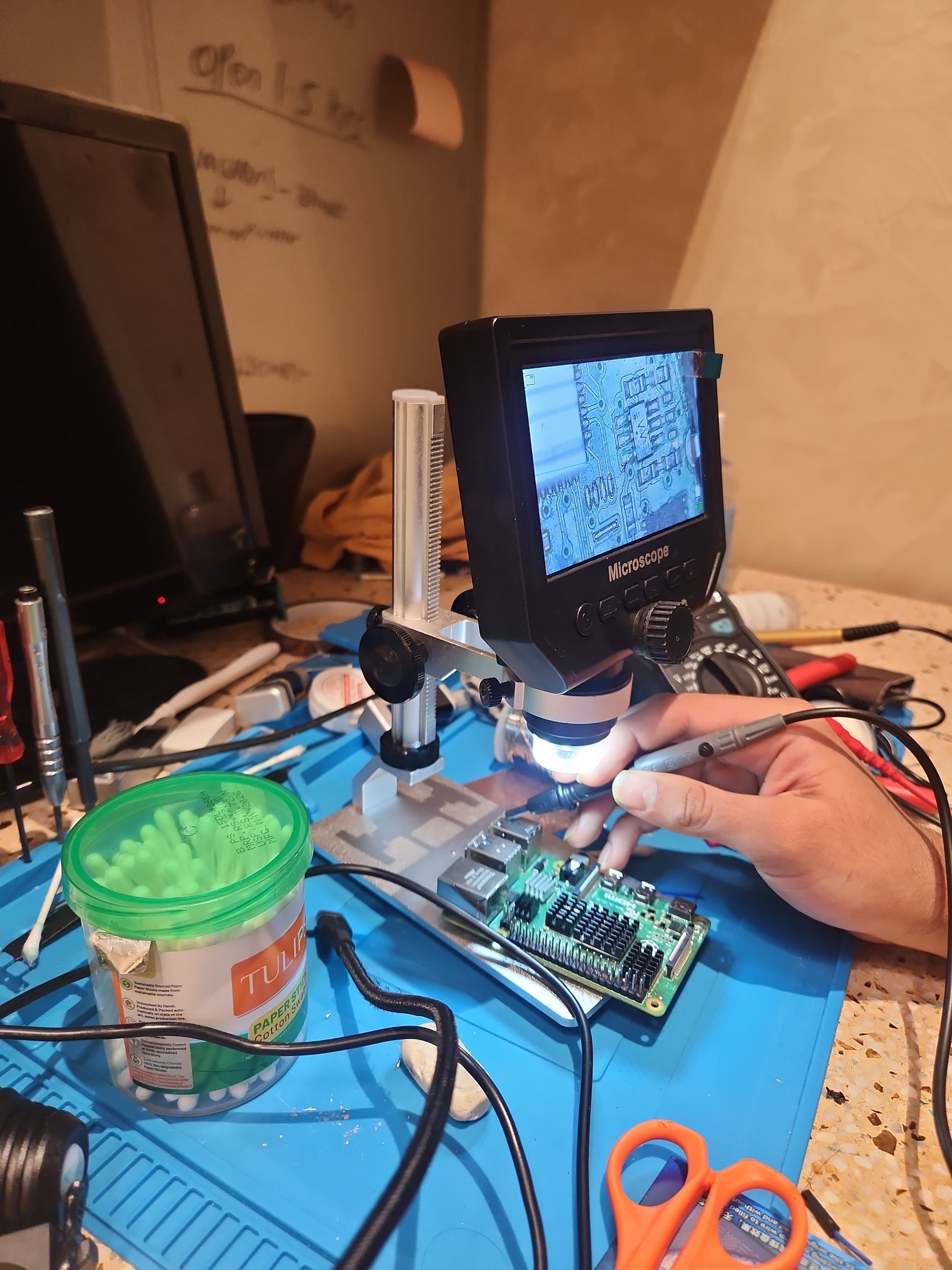
Stop using the device if a battery is swollen, the port smells burnt, the adapter sparks, or the laptop becomes unusually hot. Do not open a swollen battery yourself. A technician can inspect the charging path and explain whether the best next step is a charger, port, battery or board repair.
At DrLappyFix, we prefer a measured diagnosis before recommending a replacement. Bring the charger with the laptop so both sides of the power path can be checked.