PC Cooling Basics: Airflow, Dust and Fan Placement Before More Hardware
Simple PC build cooling checks that can improve airflow and reduce avoidable heat before you buy extra fans or expensive parts.
A powerful graphics card and processor do not help much if their heat stays trapped inside the case. Before buying another fan or a larger cooler, look at the complete path the air takes through your PC.
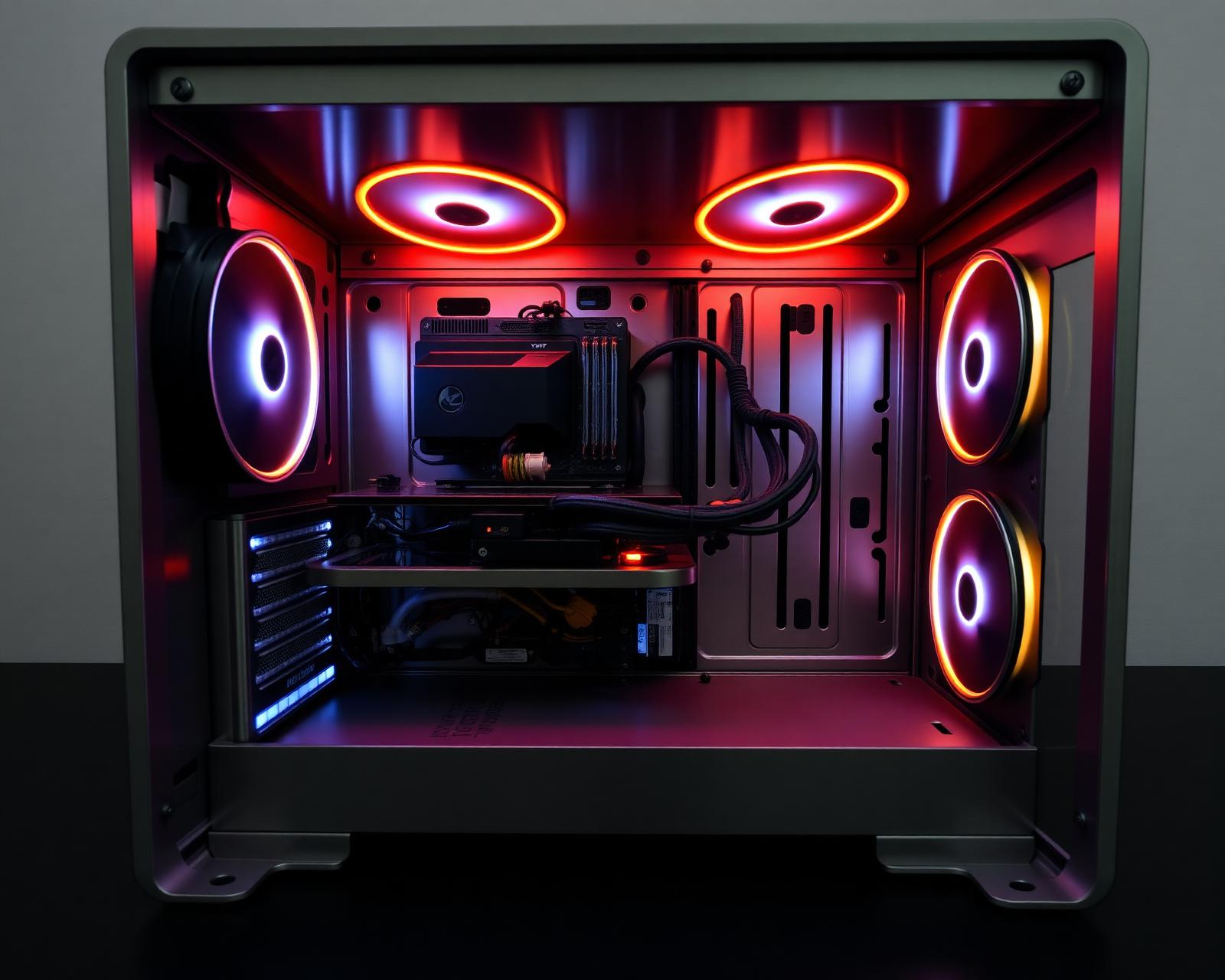
Give cool air a clear way in and warm air a way out
Many cases work well with front or bottom intake and rear or top exhaust. That is a starting pattern, not a universal rule: case panels, radiators, desk position and component layout can change the best arrangement. Check the arrows on each fan frame to confirm its actual airflow direction.
Keep cables out of the main airflow path where practical, and leave space around the case's vents. A case pressed against a wall or tucked into a sealed cabinet can struggle even with several fans installed.
Clean before upgrading
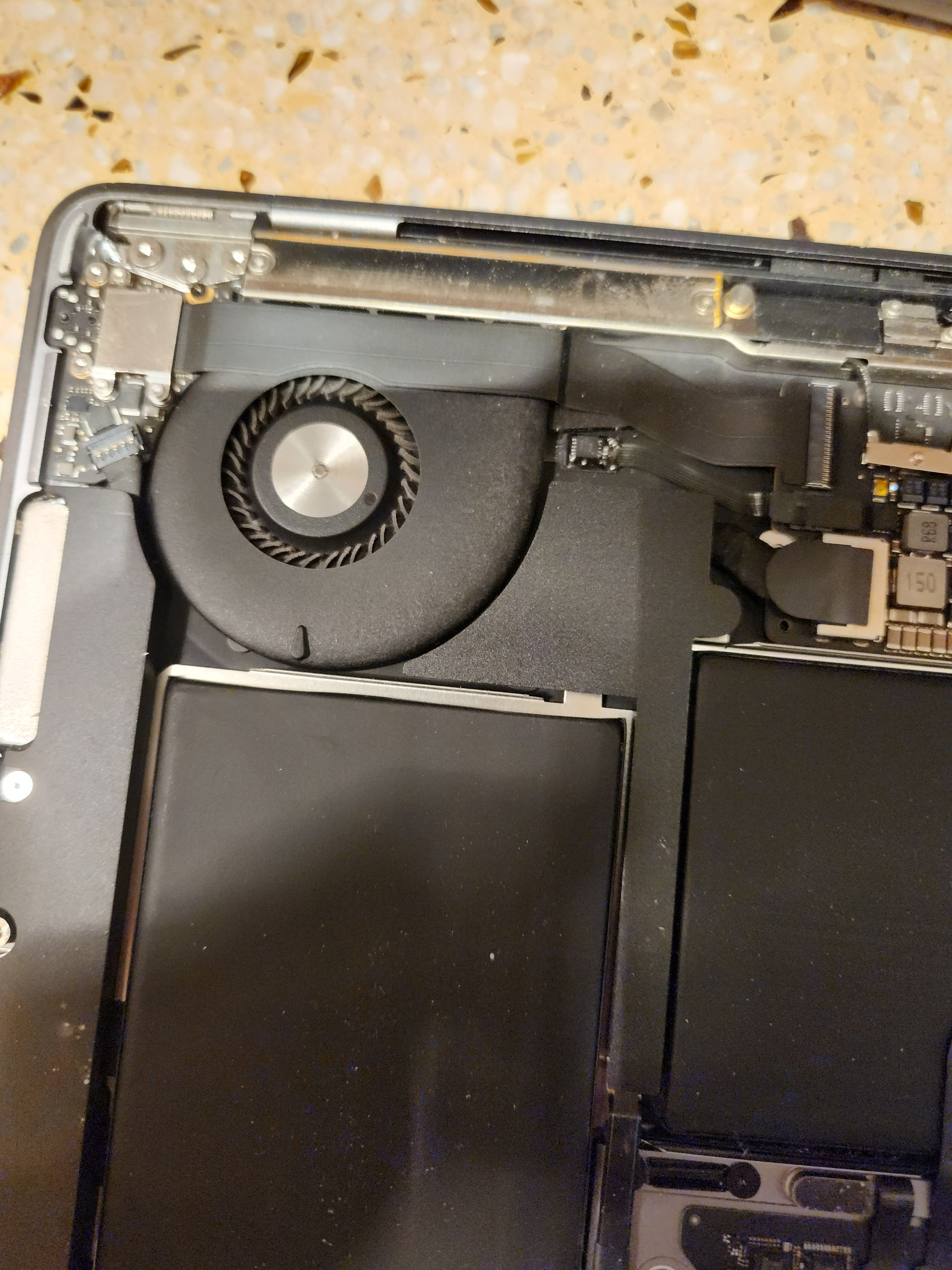
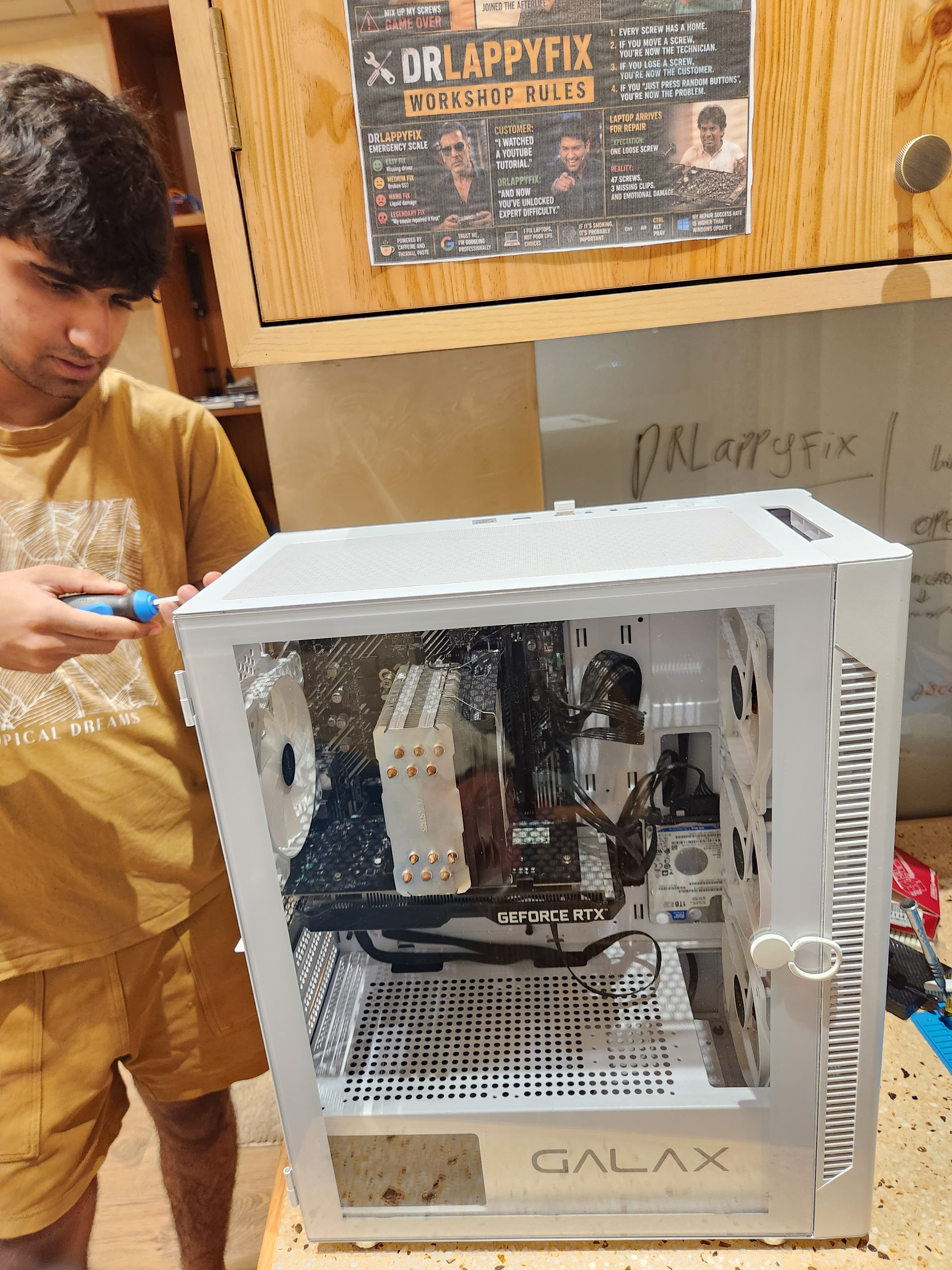
Dust-clogged filters, heatsinks and fans reduce airflow. Switch off and unplug the computer before cleaning. Use appropriate tools, keep fan blades from spinning freely under compressed air, and avoid liquids on electronics. If you are not comfortable opening the case, have a technician handle it.
Listen for a fan that rattles or stops under load. A faulty fan should be addressed before tuning fan curves or replacing unrelated components.
Measure the problem rather than guessing
Compare temperatures and fan behavior at idle and during your normal workload. Note whether the problem appears only during gaming, rendering or charging peripherals. Sudden shutdowns, severe performance drops and unusual smells deserve more than a simple fan adjustment.
When planning a new build, balance the case, cooler, fan layout and power supply with the CPU and GPU. DrLappyFix can help select a configuration that is practical to maintain, not just attractive in a product photo.