Laptop and PC RAM Upgrades: Check Compatibility Before Buying
Understand DDR generations, form factors, capacity limits and dual-channel considerations before choosing a memory upgrade for a laptop or desktop.
More RAM can help when a computer regularly runs out of memory, but buying the largest kit you can find is not a reliable upgrade plan. First identify what the motherboard or laptop supports.
Check the generation and form factor
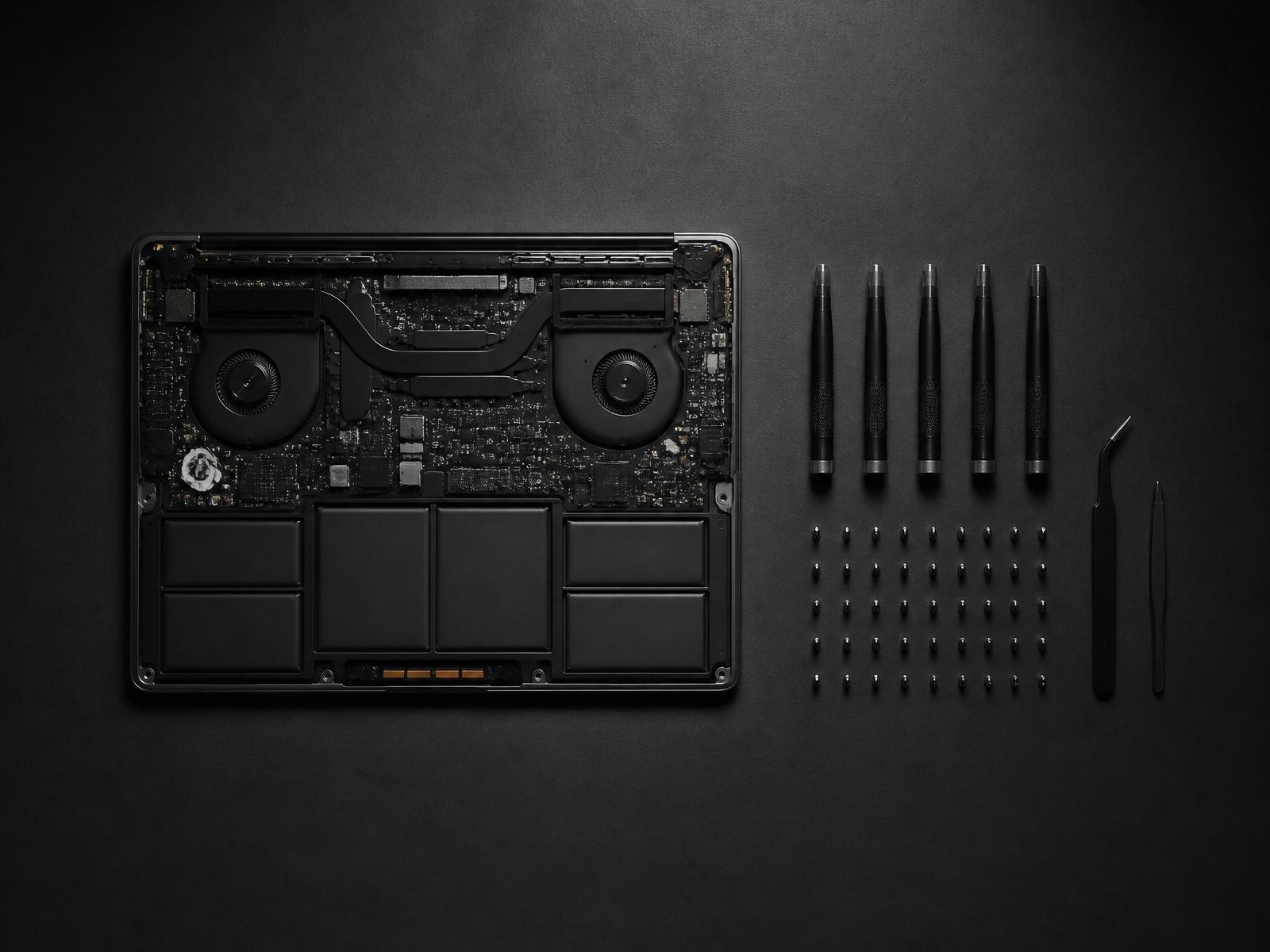
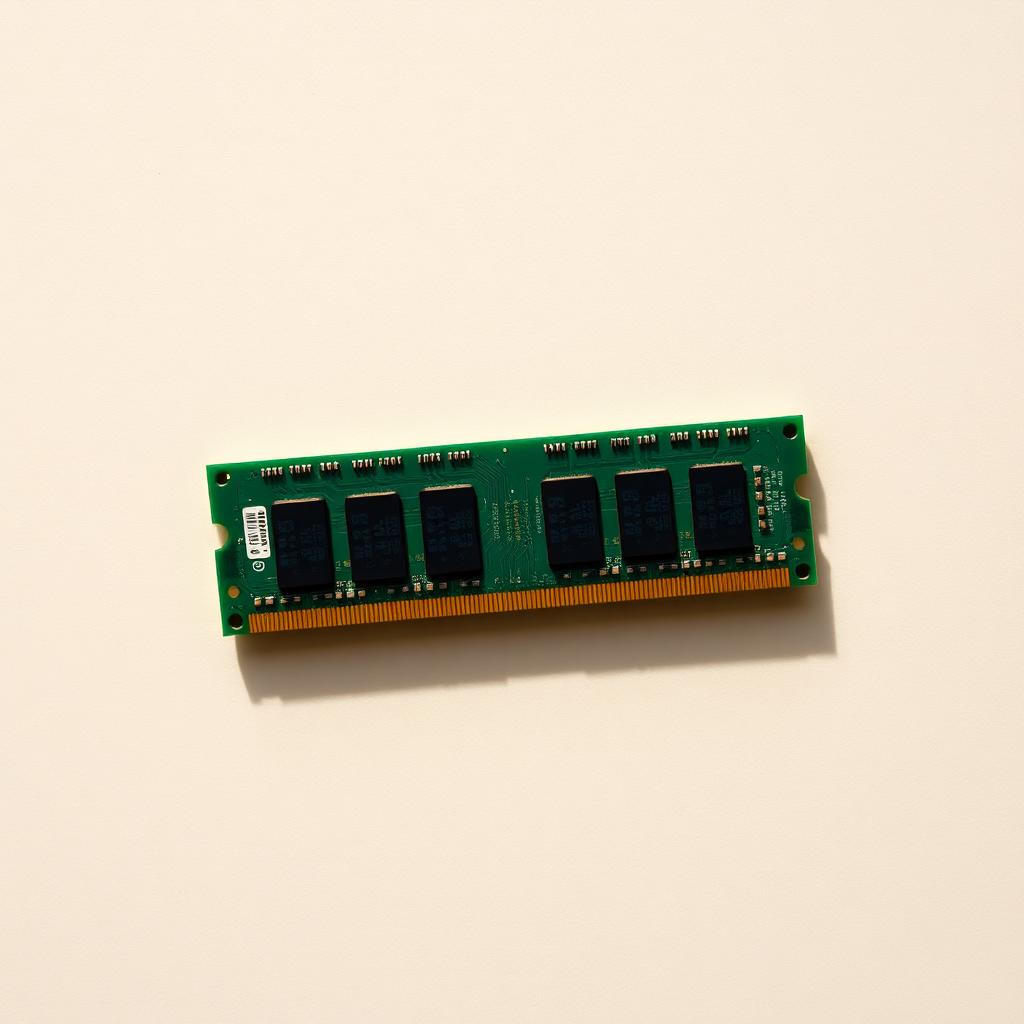
DDR2, DDR3, DDR4 and DDR5 are different memory generations and are not interchangeable. Desktop DIMMs and laptop SO-DIMMs also have different physical forms. Some thin laptops have memory soldered to the board and offer no replaceable slot at all.
Look up the exact device or motherboard model, not just the brand name. Check the supported generation, number of slots, maximum supported capacity and any manufacturer guidance for approved modules. If the machine has existing RAM, its label and system information can help, but the model documentation is the safest starting point.
Capacity comes before headline speed
Choose capacity based on what your work actually uses. Many open browser tabs, large creative projects and virtual machines have different needs. An upgrade only helps if the software is limited by memory; slow storage or a thermal fault will not be fixed by adding RAM.
When using two modules, matching capacity and specifications generally reduces compatibility surprises. Actual speed depends on the processor, motherboard, BIOS settings and the combination of modules installed.
Test after installation
After fitting compatible memory, confirm the system sees the full amount and stays stable under normal use. If it fails to start or reports a lower capacity, power down and re-check the module seating and model compatibility. Do not force a module into a slot.
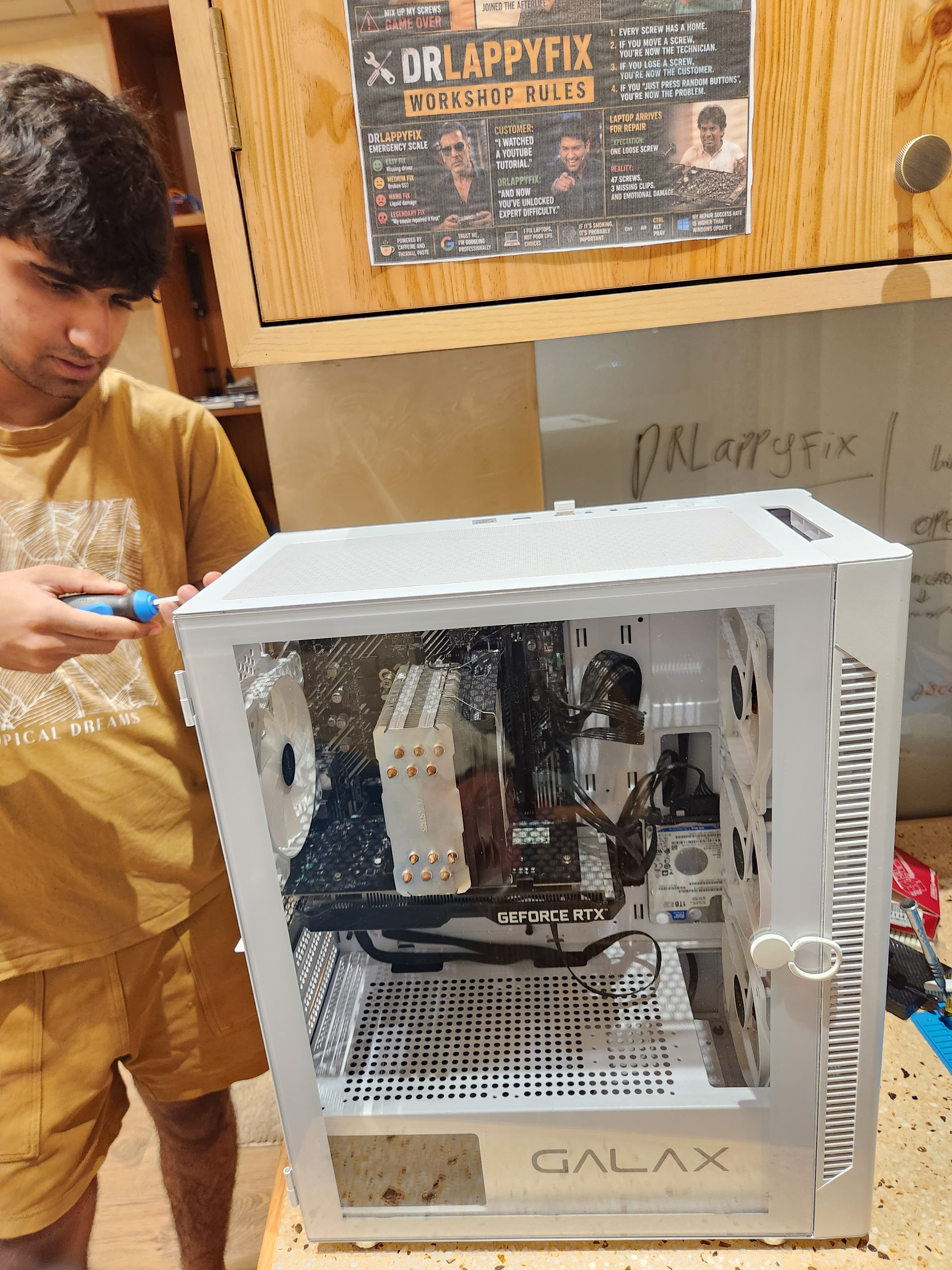
If you are unsure whether your laptop supports an upgrade, send DrLappyFix the exact model number and current memory details. That is faster and safer than buying a part based on appearance alone.